Add coupons
Follow these steps to create coupons to offer discounts on the booking form.
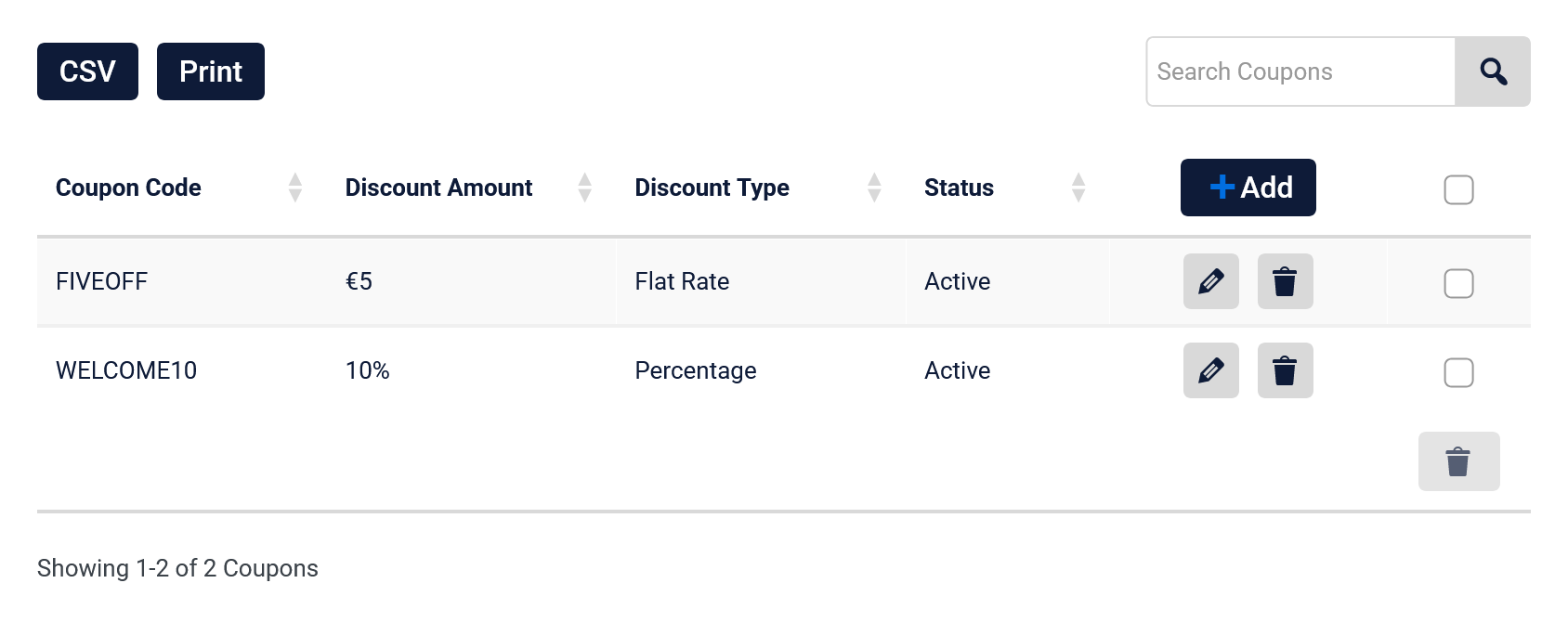
- Go to Coupons tab in the Time Slot appointment settings
- Click the + Add button on the table to open the coupon editor
- Fill in the coupon settings fields below
- Click Save Changes to save the coupon
Coupon settings
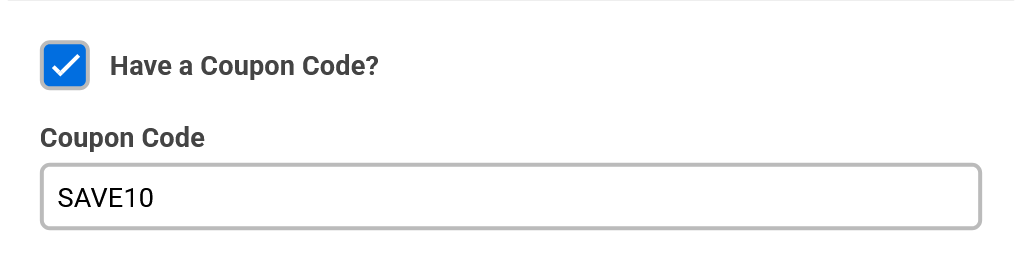
Coupon Code
Enter the promo code text customers will type in the booking form.
Example: SAVE10
Discount Amount
Enter the discount value as a number.
Do not add a currency symbol or percent sign.
Example: 10
Discount Type
Choose how the discount is applied:
Flat Rate: Subtracts a fixed amount from the total price
Percent: Subtracts a percentage from the total price
Coupon Status
Set the coupon to:
Active: Customers can use the code
Disabled: Code cannot be used
Coupons on the booking form
When a coupon is active, customers can enter the code on the booking form to receive the discount. If there are no active coupons, the coupon code fields will not be shown on the booking form. The coupon codes are not case sensitive on the booking form. The discount will automatically be applied to the price of your service.