
- Set business hours
Enter a start time and end time for each day you are open. Repeat this for each weekday. Check Closed for any days you are not available. Click the Save Changes button when finished. If you do not set hours, the default is 9:00 AM to 5:00 PM.
You can also add a break to block time during the day. Check Break and enter a start time and end time. Click the Save Changes button when finished. Customers cannot book appointments during break times.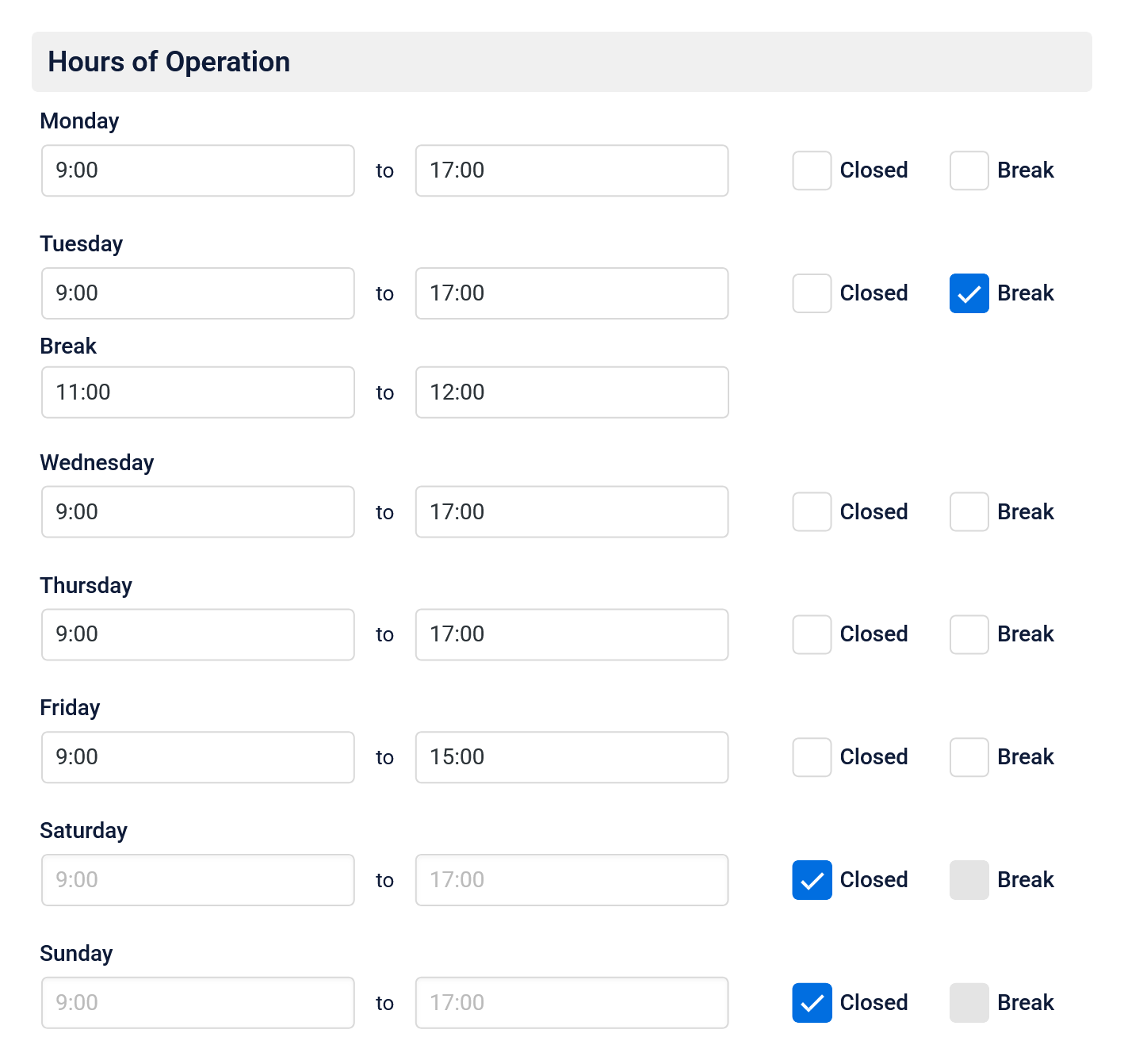
- Add holiday days off
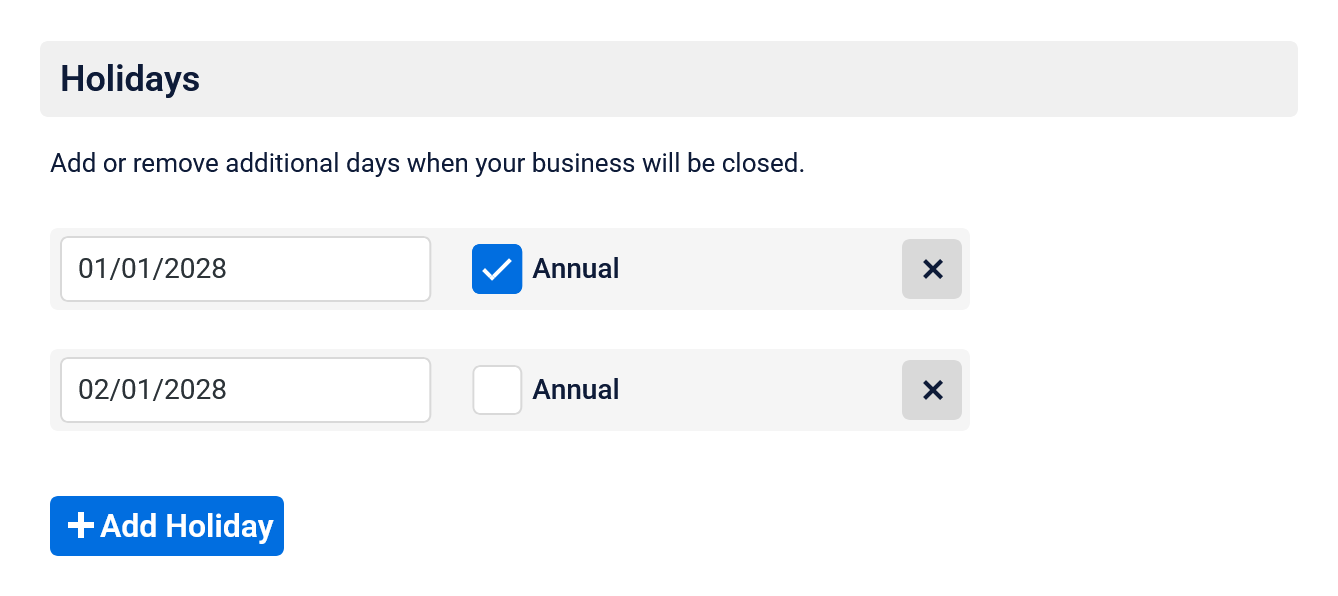
Select dates when your business is closed or when you do not want to accept appointments. Check Annual for dates that repeat every year. To add more holidays, click the +Add Holiday button. To remove a holiday, click the X button next to the date. Click the Save Changes button when finished.
- Add seasonal months off
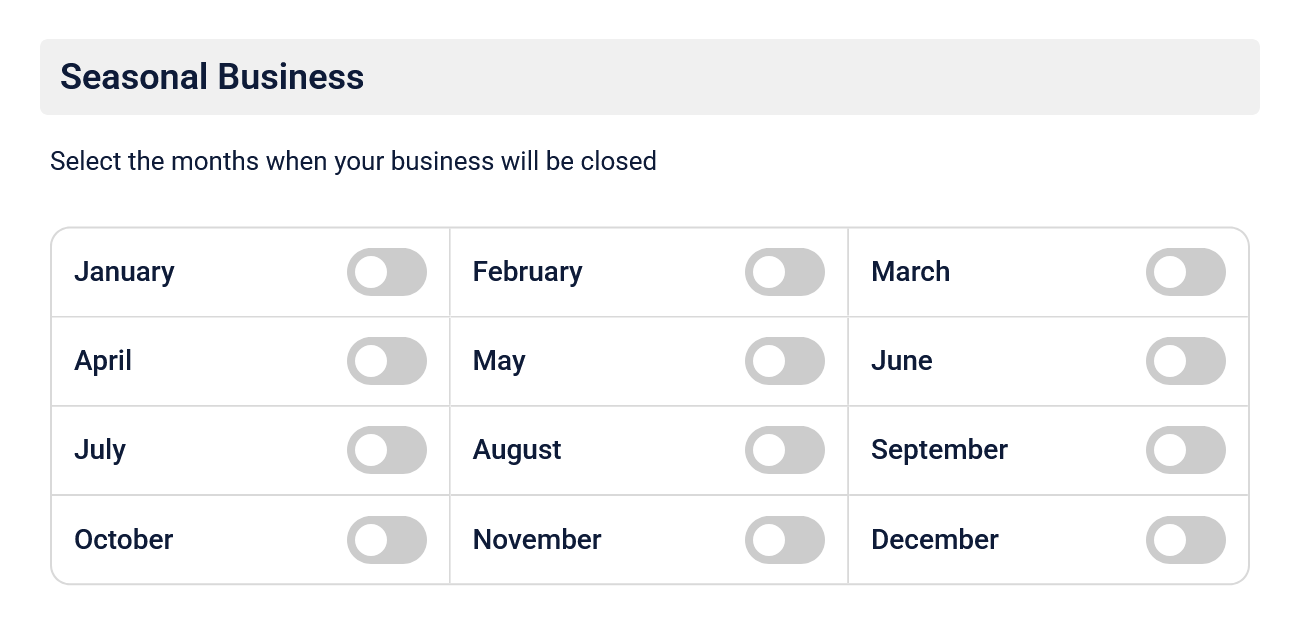
With Time Slot Pro, select the months when your business will be closed. Every day of that month will be blocked on the booking form. When finished, click the Save Changes button.
Next steps
Add your first service to enable bookings, then display your booking form to start accepting appointments.