
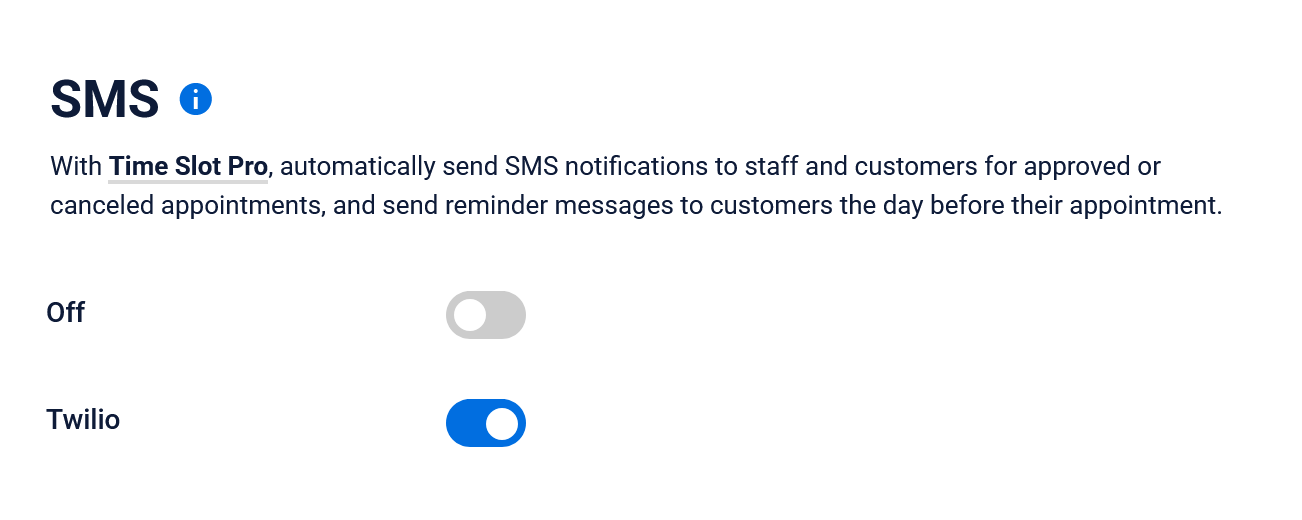
- Turn on Twilio
Select the switch to open the Twilio settings in the Time Slot general settings on the SMS tab.
- Twilio account
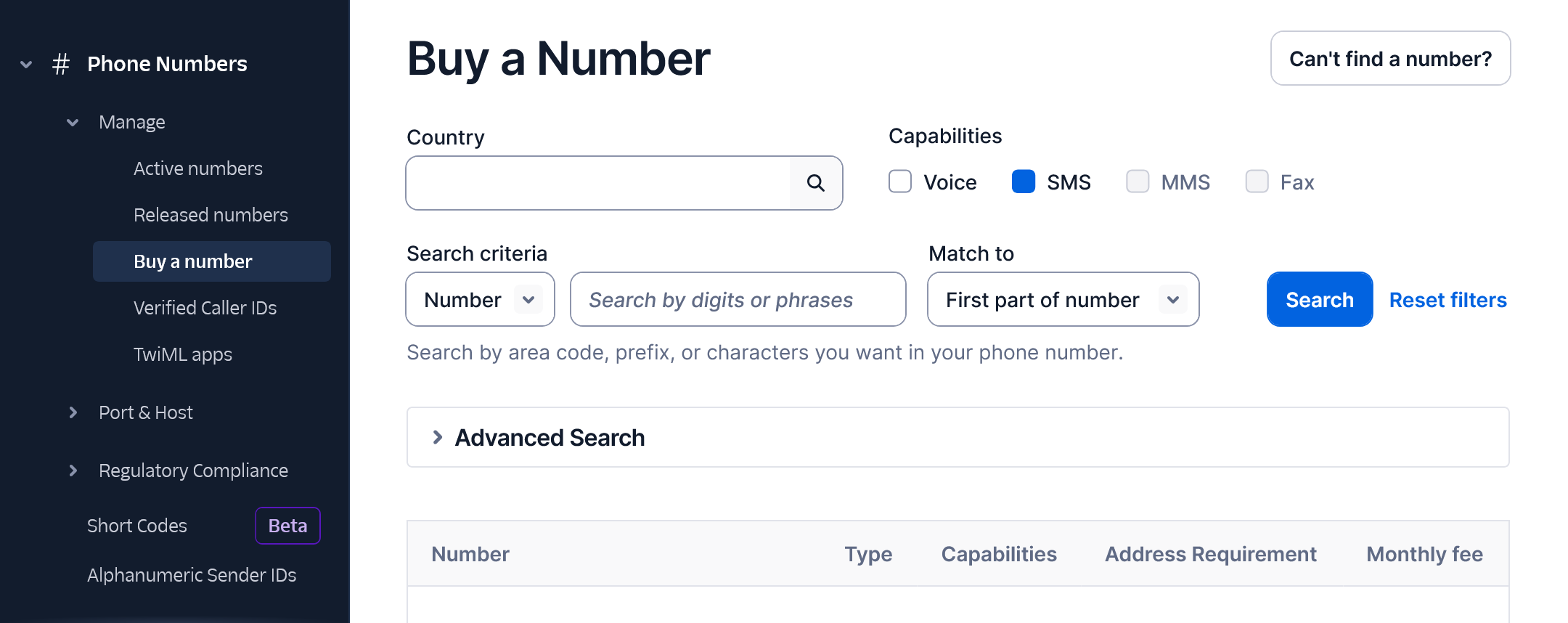
Login or create a Twilio account at twilio.com. Buy a phone number from Twilio to use to send your SMS messages. Go to Phone Numbers > Manage > Buy a number in your Twilio account to purchase. For more information about these phone numbers, visit Twilio at twilio.com/phone-numbers.
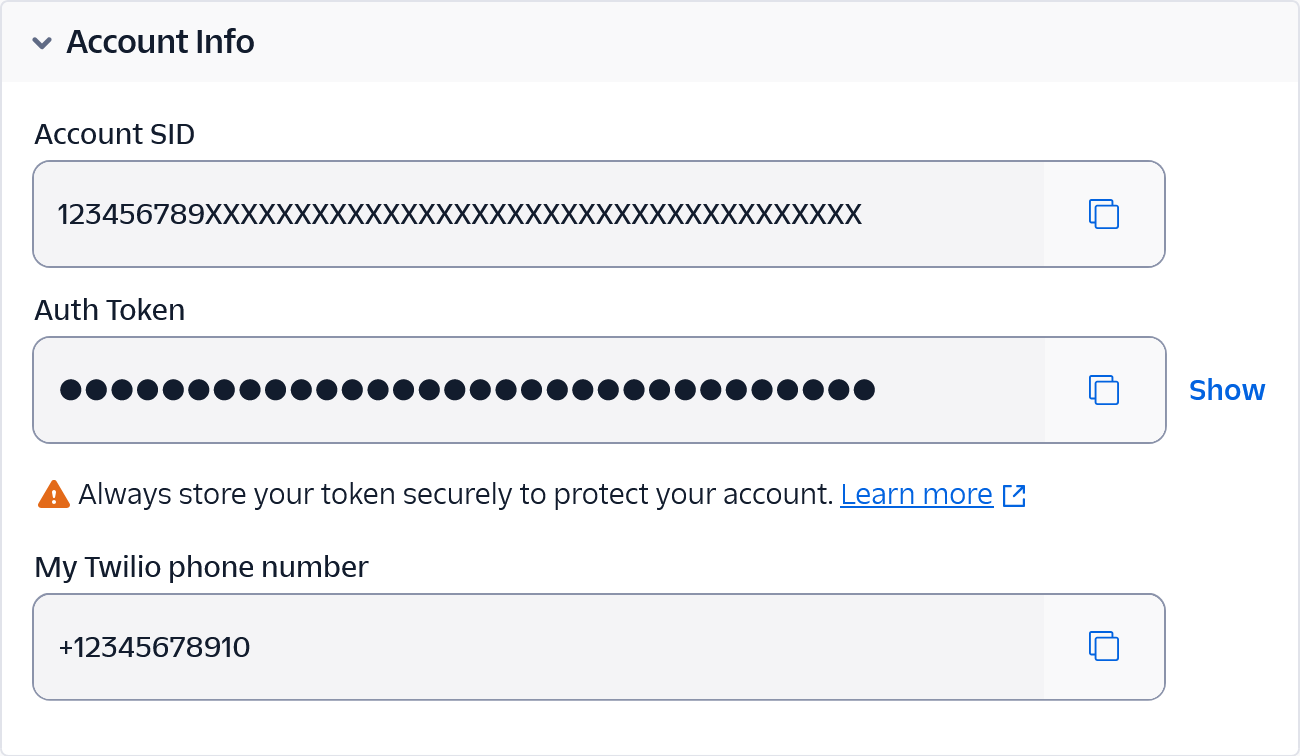
- Twilio account info
In your Twilio account dashboard, go to Account Info. Copy the Account SID, Auth Token and your Twilio phone number.
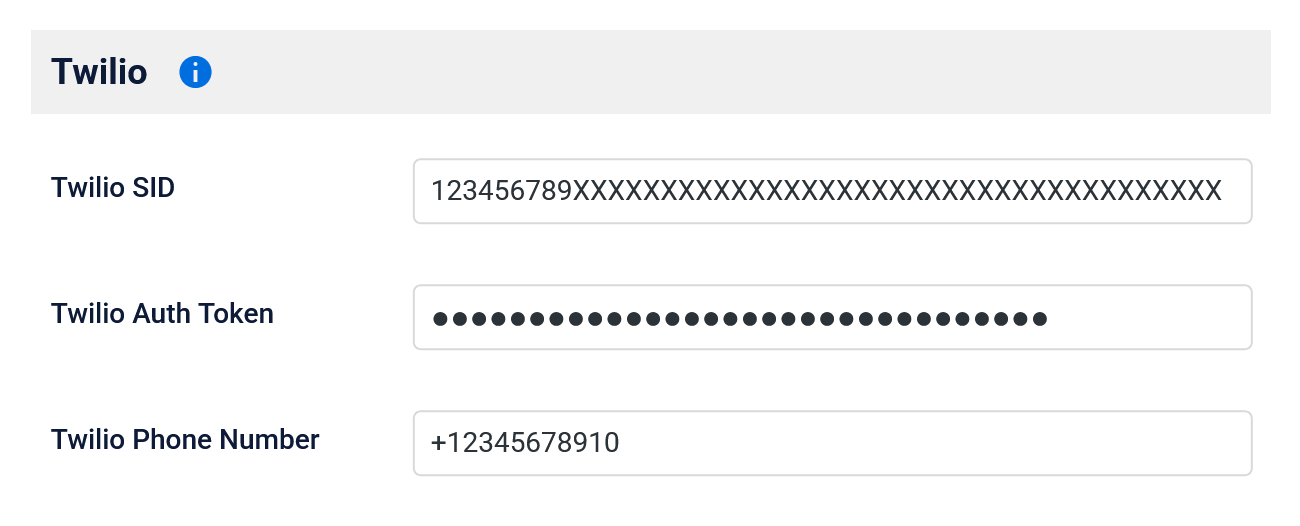
- Twilio settings
Paste your Twilio credentials into the corresponding SID, Auth Token, and Phone Number fields in the Time Slot SMS settings. Click the Save Changes button at the bottom of the page to store your settings.
- Turn on message types
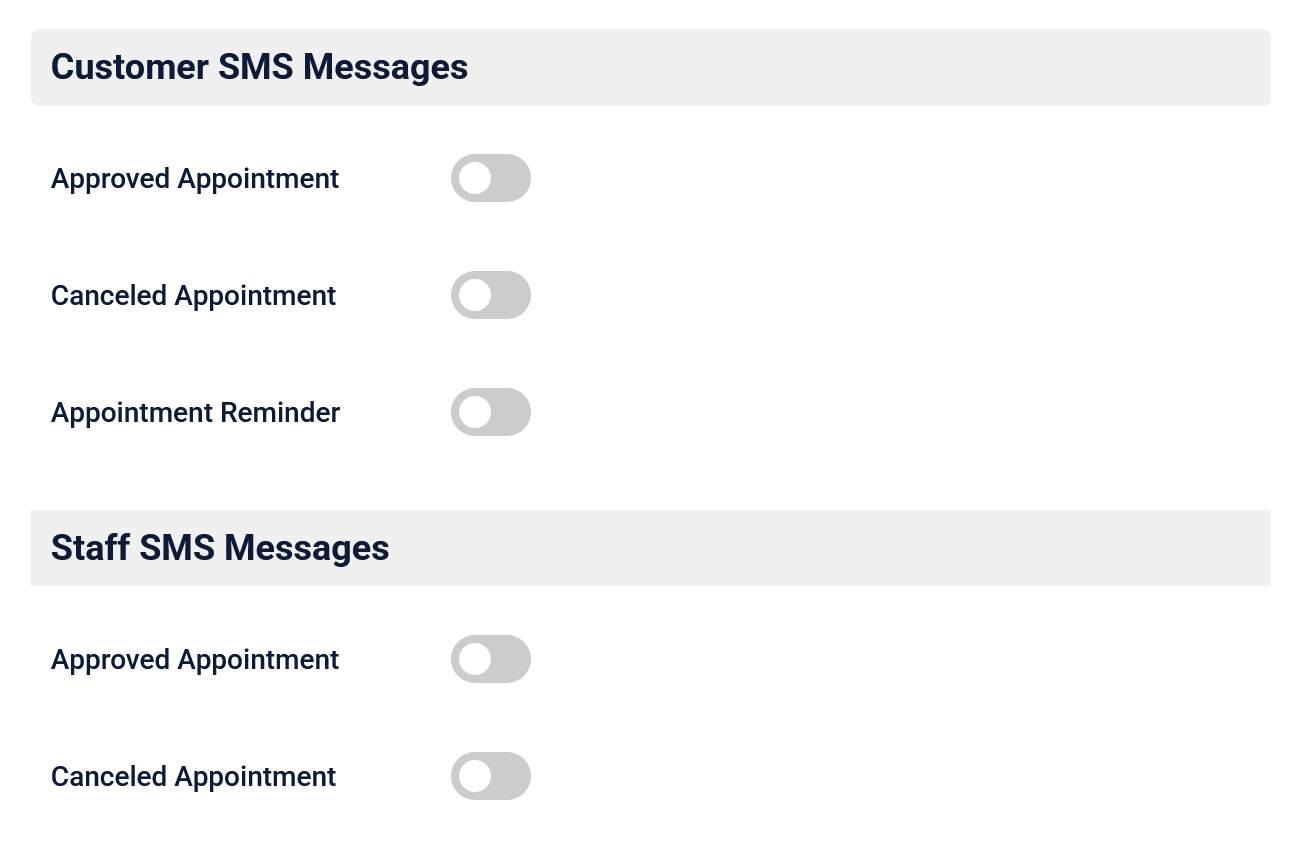
Select the switch for each of the messages you’d like to send. Choose to send messages to customers or staff when appointments are approved or canceled, or send a reminder message to customers 24 hours before their appointment.
- Customize messages
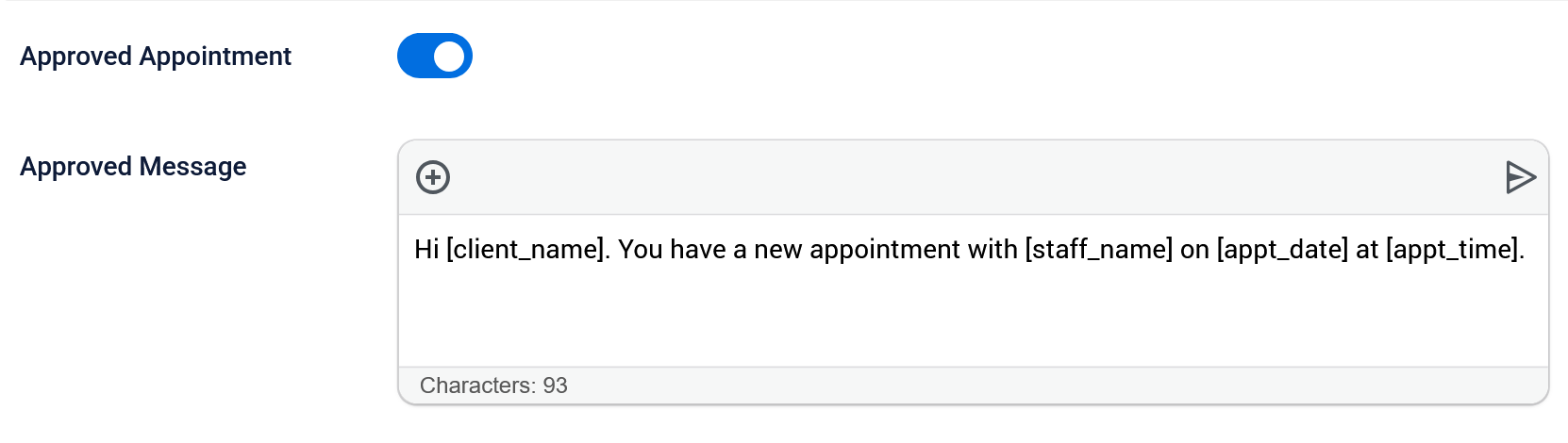
Use the message template or customize the text for each SMS message in the large text area. Single SMS messages are limited to 160 characters, or 70 characters if any emojis are included. Use the character counter at the bottom of the text area as a guide. Click the Save Changes button at the bottom of the page to save your messages.
- Insert appointment details
Select the Time Slot insert button (+) in the top toolbar of the text area. Choose one of the category tabs, then select an option from the drop down box. Click the Insert button to add a shortcode to the body of the SMS message. When the message is sent, this shortcode will be replaced with the real appointment information.

- Send a test message
Select the arrow button in the top right of the text area toolbar. Enter your phone number including a plus sign and the country code in the text box (Example +15009997777). Click the Send button to send your test SMS message.

- You’re done!
Now your SMS messages will send automatically to your clients and staff.
Send SMS Messages
Automatically notify customers and staff with SMS messages for approved, canceled, or upcoming appointments with Time Slot Pro and Twilio
SMS on the Time Slot booking form
When SMS messages are active in Time Slot Pro, the booking form will add some new features to help messages get to the people that want them.
Phone number fields
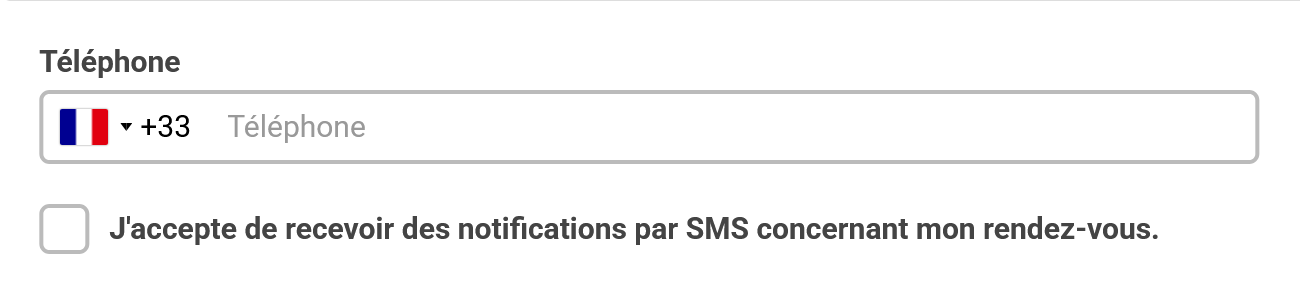
With SMS active, the phone number field will convert to an international display. This is to help ensure that the phone number your customer enters is in the correct format for SMS. The country picker will automatically populate based on the location of your website, and can be changed by your customer. Changing the country and area code for the phone number will not change the language of any of the fields.
SMS consent message
When using SMS, a checkbox will appear on the booking form asking your customers for consent to receive appointment messages. SMS messages will only send to clients that select this checkbox. You can find your customer SMS consent records on the Customers tab of the Time Slot Appointment settings.
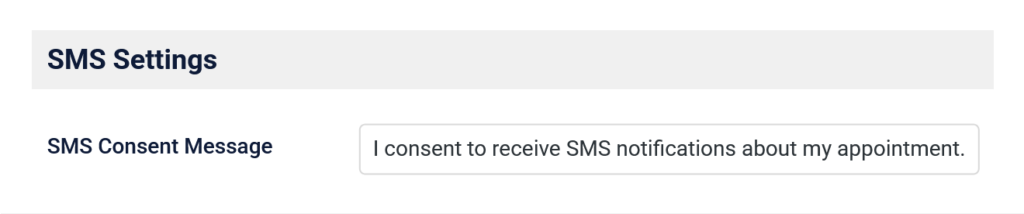
If you would like to change the consent checkbox label, go to the Booking Form tab in the Time Slot General Settings. Click the save changes button at the bottom of the page to save your new message.
Start Booking Today
Pick the Time Slot WordPress booking plugin that works best for you
per year
What you get:
Free
forever
What you get: