
The Time Slot Pro customer panel lets customers log in with a one-time login code, view their appointments, cancel eligible appointments, book new appointments, and update their contact information.
Set up the Customer Panel
Add the Time Slot Pro customer panel to a page on your website using the shortcode, or drag and drop the customer panel block or widget into your page.
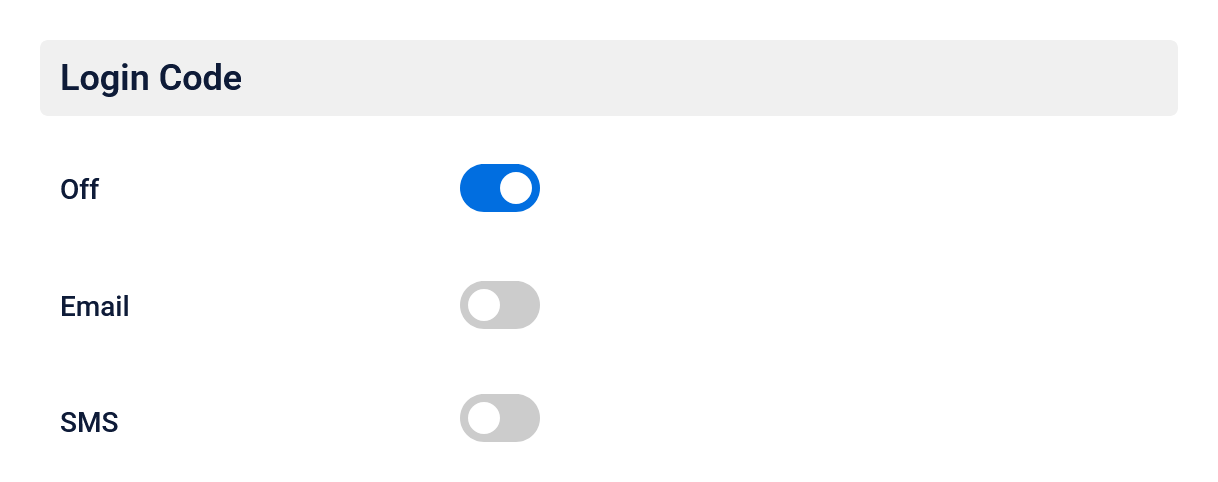
Login Code
The login code provides temporary access to the customer panel without requiring customers to create or remember a password.
Choose how customers will receive their login code. Time Slot Pro can send login codes by:
Make sure the corresponding email or SMS settings are configured before selecting an option. If your company name is saved in the Business Info settings, it will be included in customer messages.
Display
You can add the customer panel using:
Click the shortcode below to copy it:
[timeslot-customer-panel]
After adding the customer panel to your page, publish the page and make sure your customers can access it from your website. Use the Time Slot style settings to customize the appearance of the customer panel.
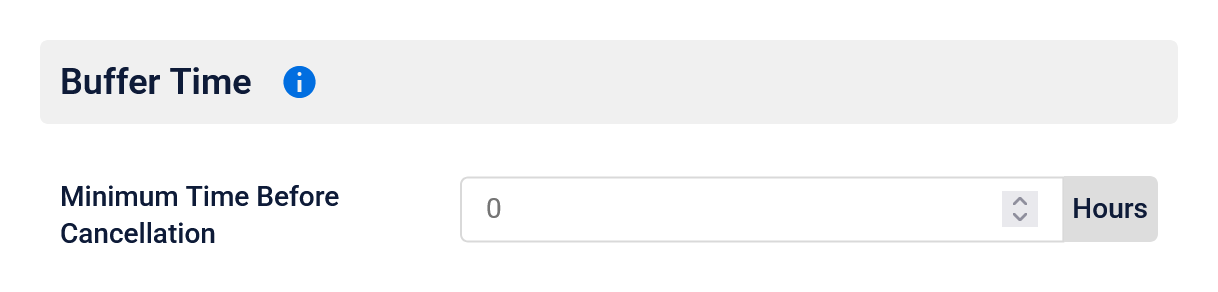
Minimum time before cancellation
Set how far in advance customers can cancel an appointment. Appointments within this time limit cannot be cancelled through the customer panel. Customers will be shown a message letting them know that the cancellation period has passed.
For example, if you set the limit to 24 hours, customers can cancel appointments up until 24 hours before the scheduled appointment. Appointments within that 24-hour window can no longer be cancelled.
Customer view
When a customer opens the customer panel, the first screen will prompt them to enter the email address or phone number associated with their account, depending on your login code settings.
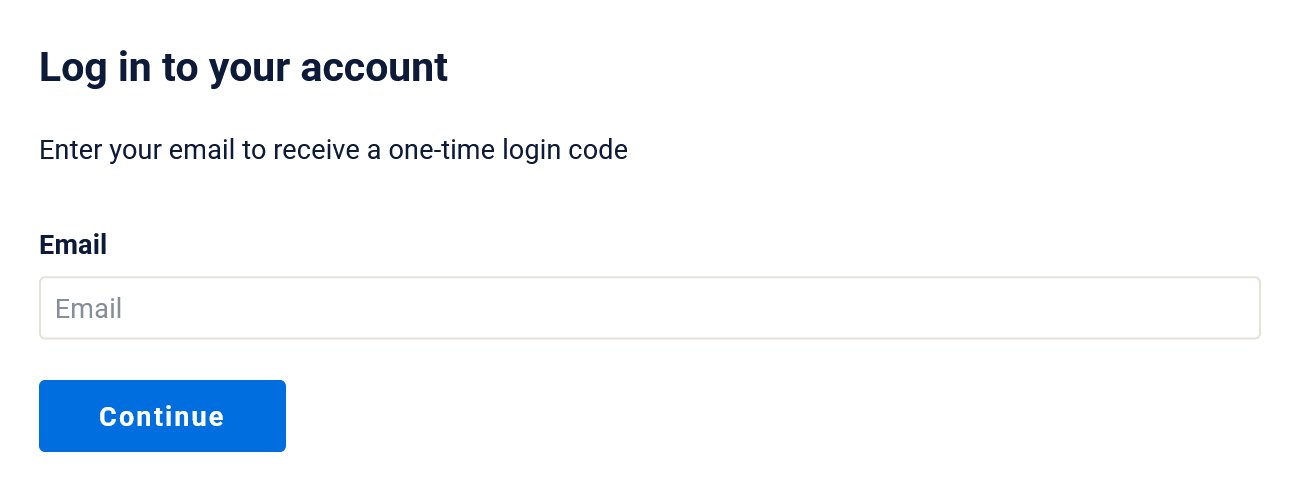
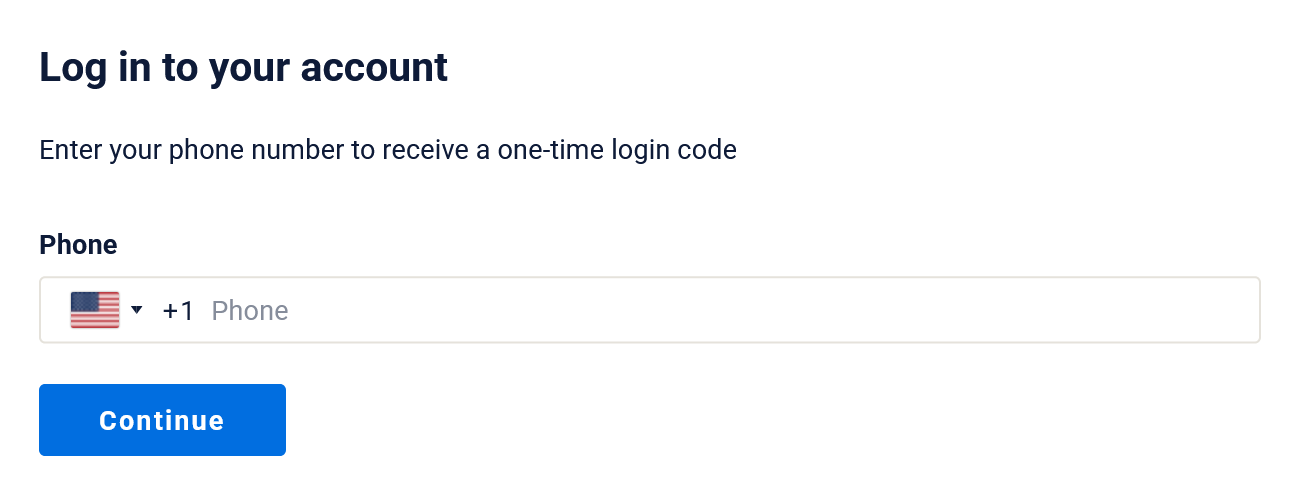
After they click Continue, Time Slot Pro sends a login code using the selected delivery method. The customer enters the code on the next screen to confirm their account and access the customer panel.
Manage appointments
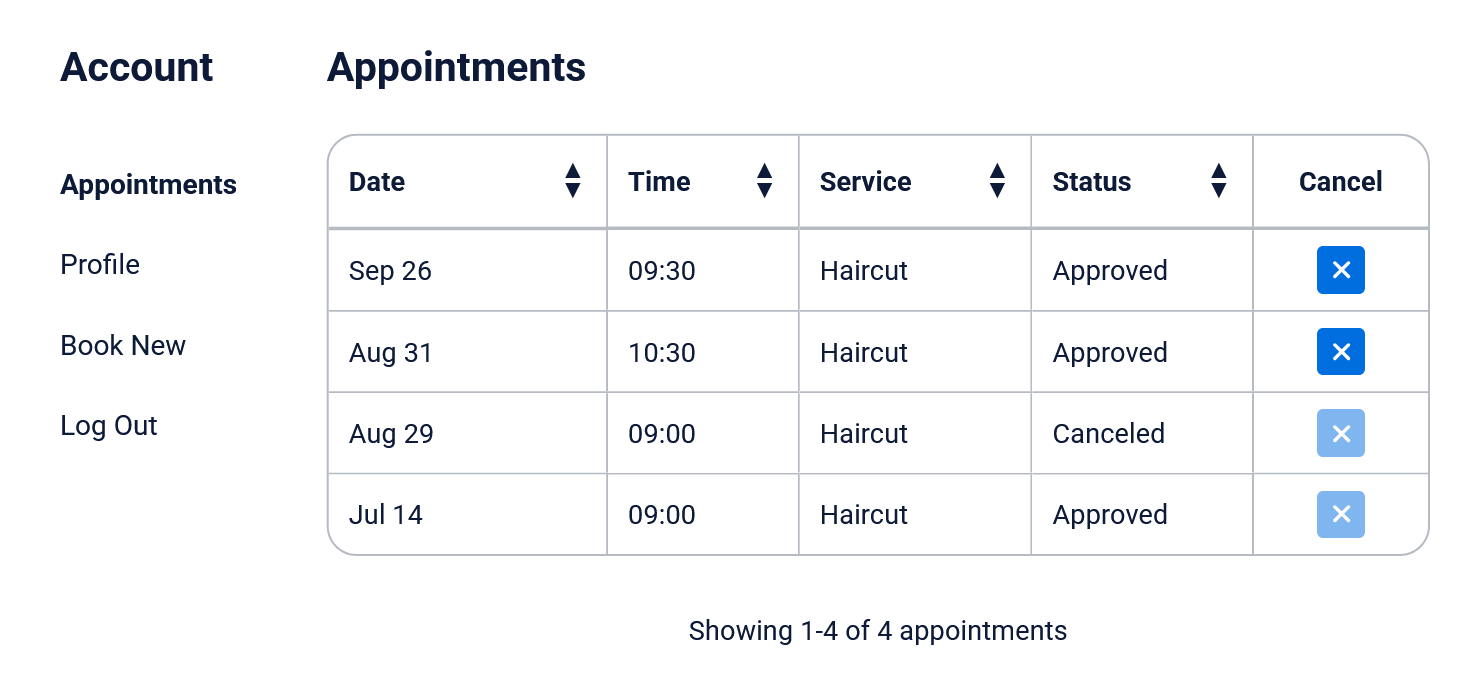
After logging in, customers can view their upcoming appointments and manage appointments that are eligible for cancellation. Customers can:
Past appointments, previously cancelled appointments, and appointments within your minimum cancellation time limit cannot be cancelled.
Update profile information
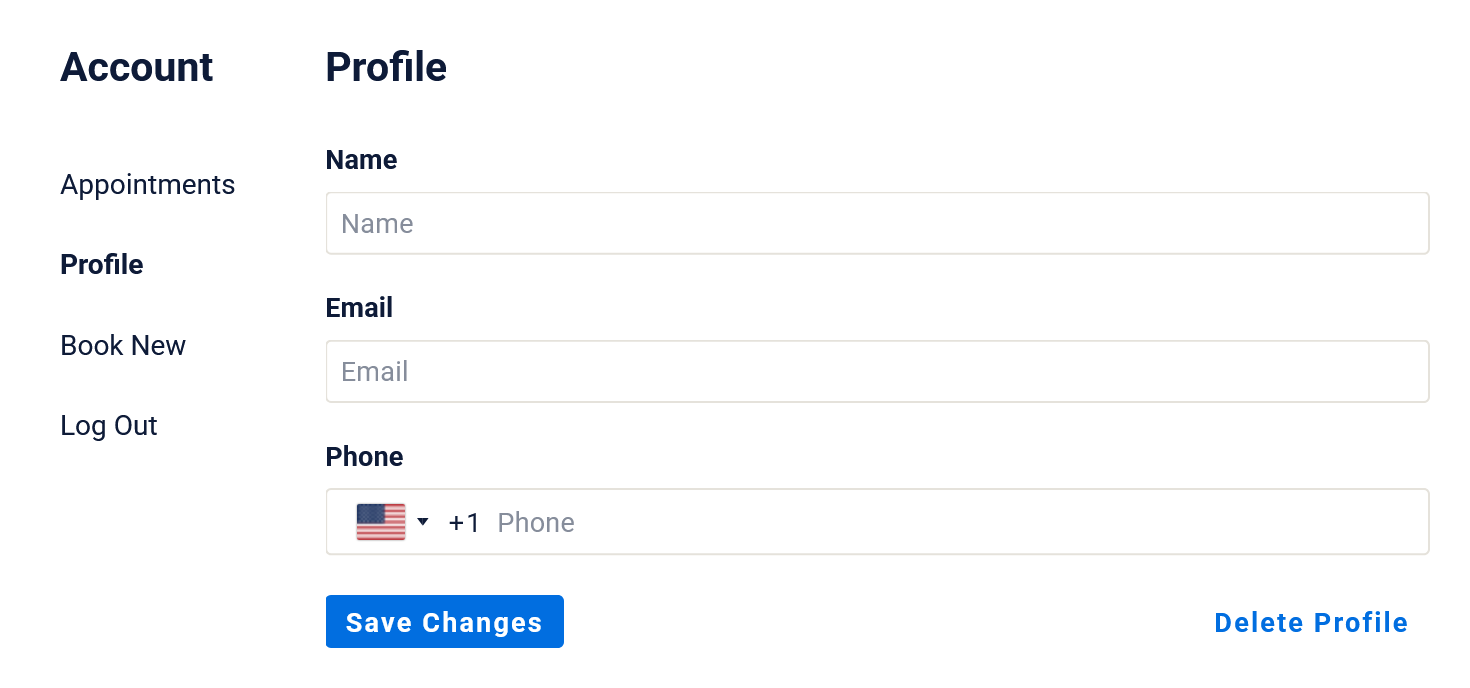
Customers can update their contact information from their profile. This allows customers to keep their information up to date without contacting your business to make changes.
Delete customer profile
Customers can also delete their customer profile from the customer panel. When a profile is deleted, personal customer information is removed while existing appointments are maintained. The appointment records retain the customer ID without the customer’s personal information.
This allows customer profile deletion to support GDPR compliance while preserving appointment records for your business.