
- Get Started
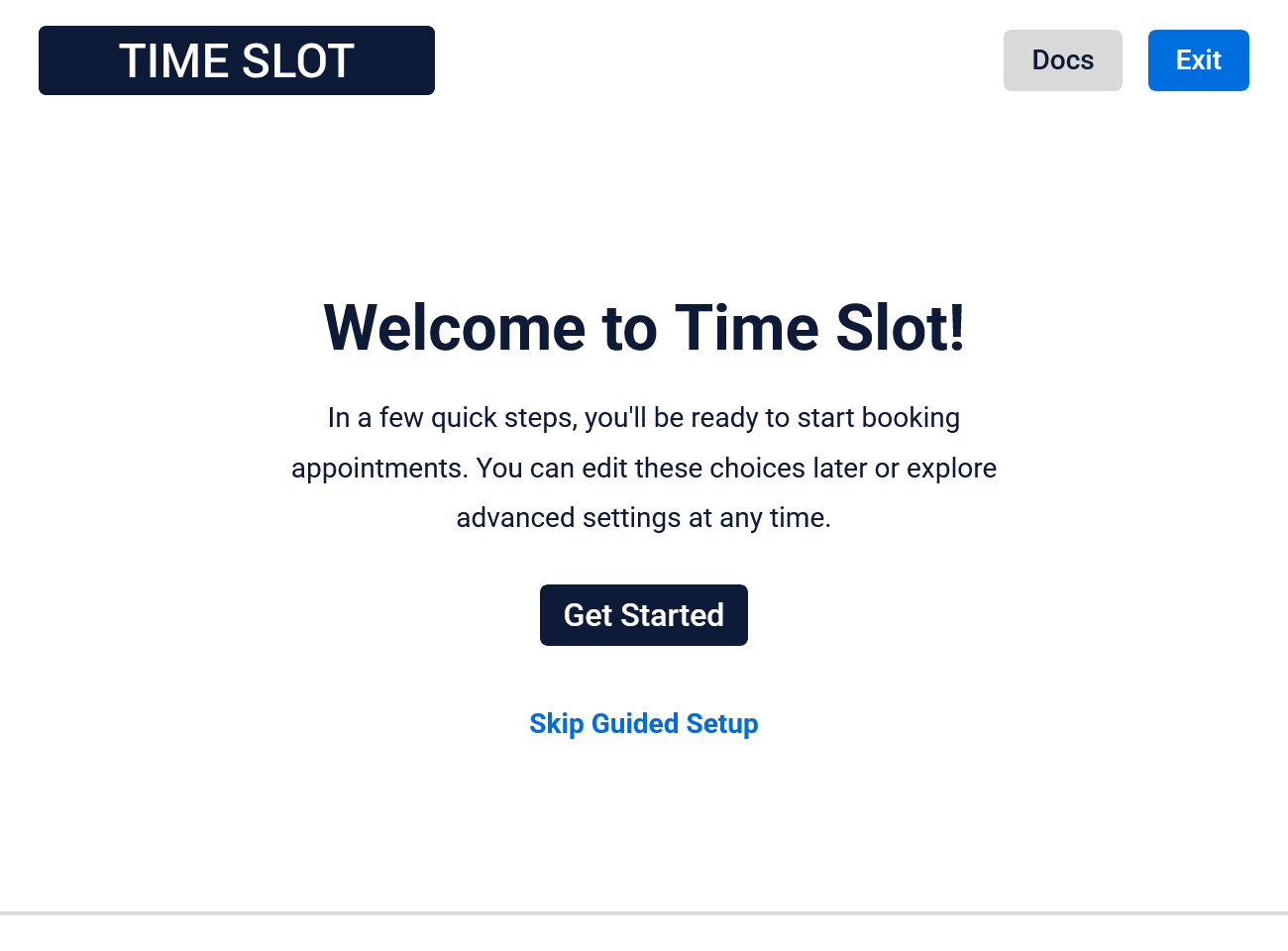
The setup wizard opens automatically the first time you access the Time Slot settings after installing the plugin. You can return to the quick setup anytime from the main dashboard. You’re free to leave the wizard whenever you like, use the Exit button at the top of the page or select Skip Guided Setup on the first screen. Any settings you’ve already saved will remain in place. When you’re ready to begin, click Get Started to move to the first step.
- Date & Currency
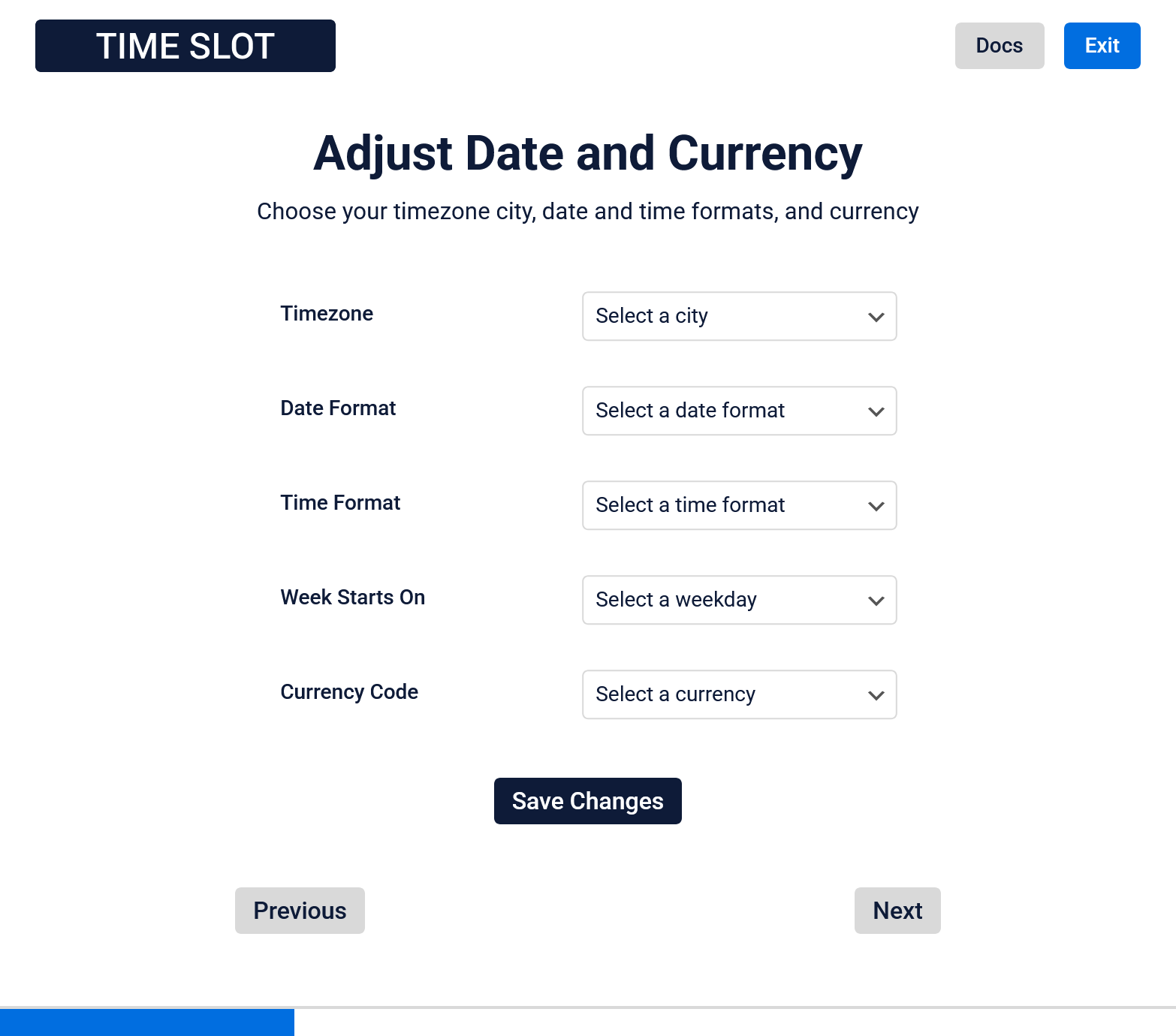
On the date and currency page, enter your local preferences to match your business needs. Some fields may be prefilled, but you can adjust any of them as needed. Updates to your timezone, date, time, or weekday formats will also apply to your WordPress general settings. All fields are required to ensure your booking form works correctly. Click Save Changes when you’re ready, then select Next to continue to the following step.
- Services
On the services page, enter the name, price, and duration for each service you offer. Click Save Changes to add a service, and repeat as needed until you’ve entered all of your services. Use Next to continue or Previous to return to the prior step.
For more ways to customize your services, see our services documentation or open the Time Slot business settings on your website.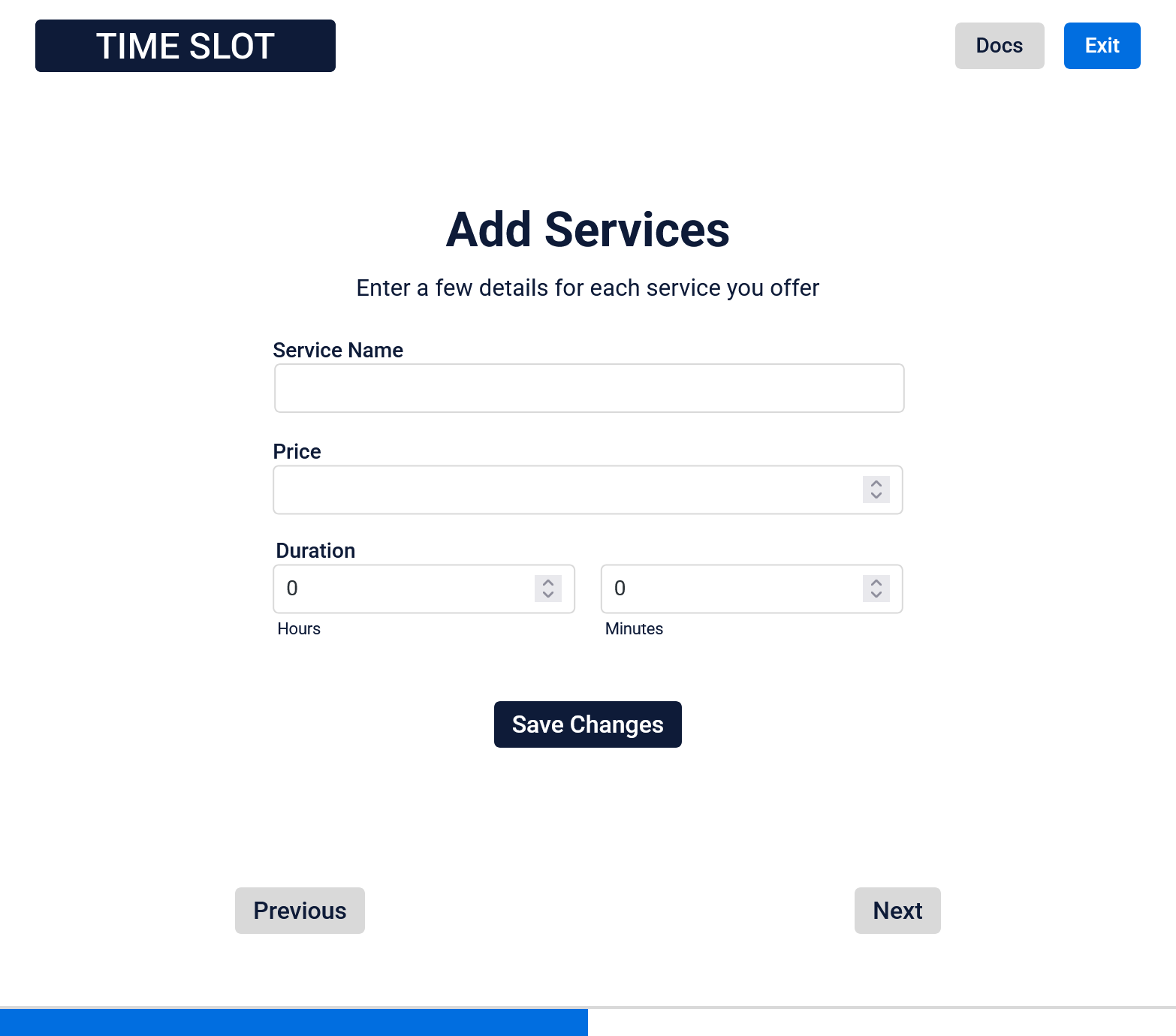
- Business Hours
On the business hours page, add your working hours to block out dates and times on the booking form. Enter your opening and closing times for each weekday. If you leave these fields unset, the default hours of 9:00 am to 5:00 pm will apply. Mark any days you’re closed by selecting the Closed checkbox. Click Save Changes when finished, or use Next and Previous to move between steps.
For more options, including break hours, see our getting started documentation or open the business hours tab in the Time Slot settings on your website.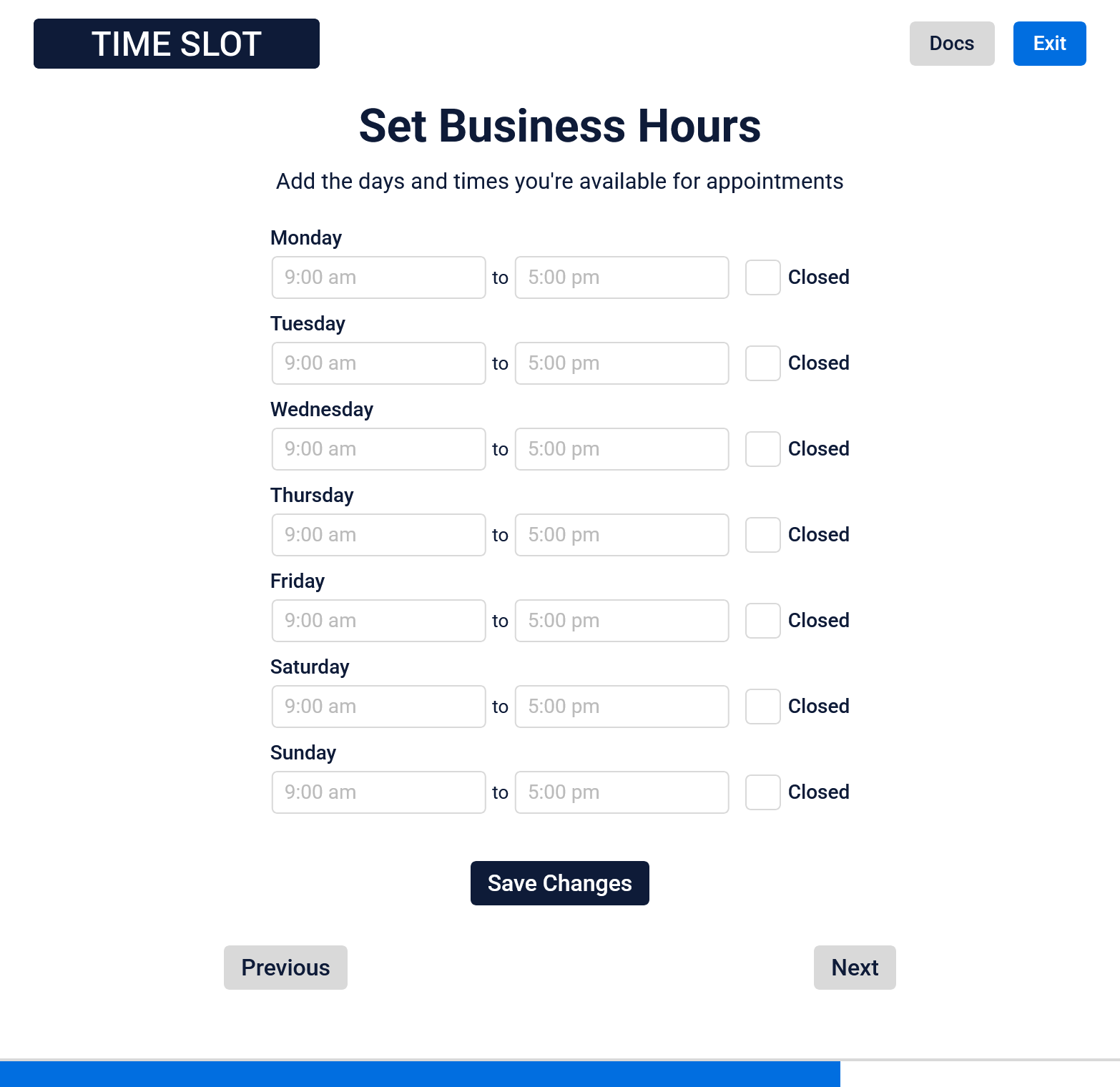
- Finish Setup
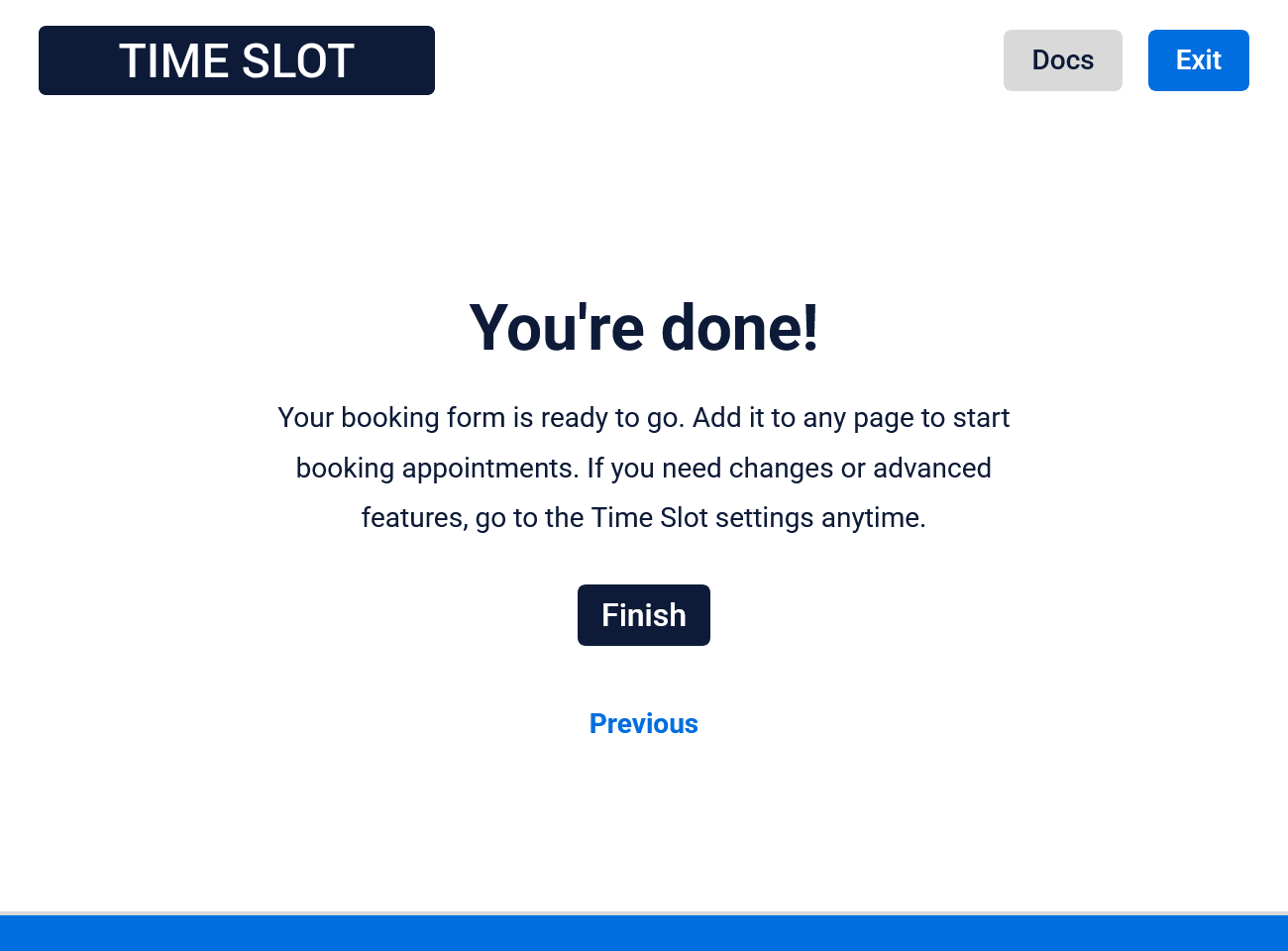
Click the Finish or Exit button to leave the setup page. If you want to revisit a previous step, use the Previous button. You can also open the full documentation anytime by selecting the Docs button at the top of the page.
- Start Booking
Visit the Time Slot settings dashboard on your website for more options or add the booking form to a page to start scheduling appointments. For more info on getting started, explore the service, staff, or email setup guides, or check out the docs for additional guides.
Quick Setup Wizard
Quickly configure some basic settings to start booking appointments with Time Slot right away