
You can find the booking form settings and message options on the Booking Form tab in the Time Slot settings. With Time Slot Pro, create custom fields for your form here, as well.
- Appointment settings
Default time slot
Choose the time slot duration to show on the booking form. This determines the available start times customers can select when booking an appointment. If not set, the service duration will determine the appointment time slots.
Minimum time before booking
Set how far in advance customers must book an appointment. Time slots within this window will be hidden automatically on the booking form to prevent last-minute bookings.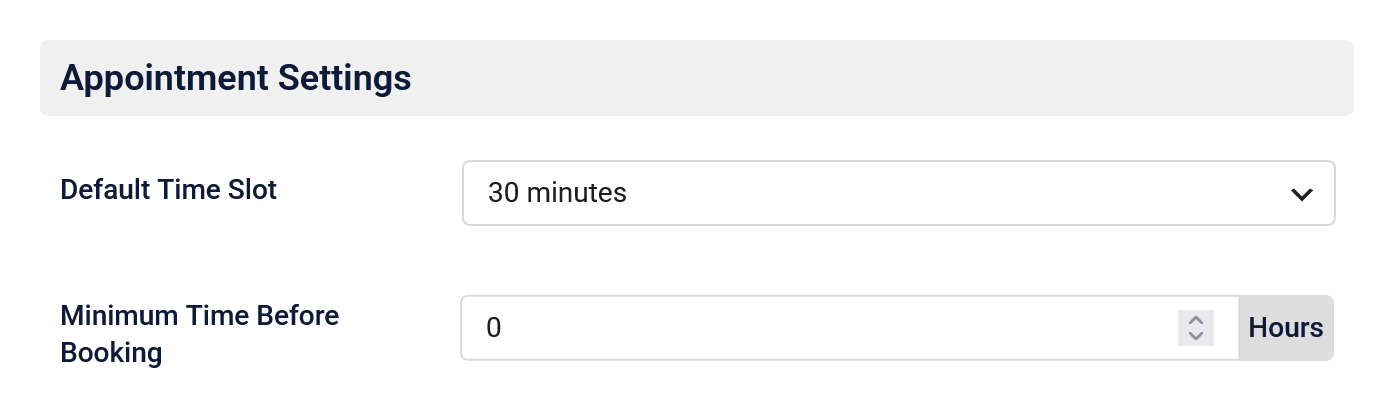
- Form messages
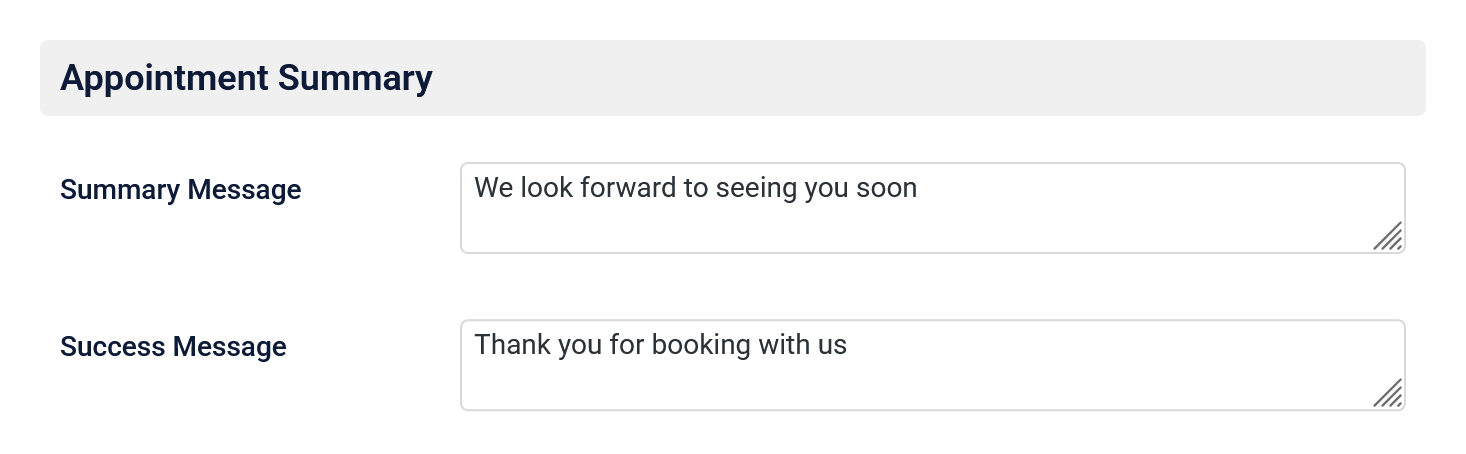
Customize the messages shown on your booking form by adding a summary message to display a custom note alongside the appointment details before submission, and a success message to show a confirmation after a successful booking or payment.
- SMS consent message
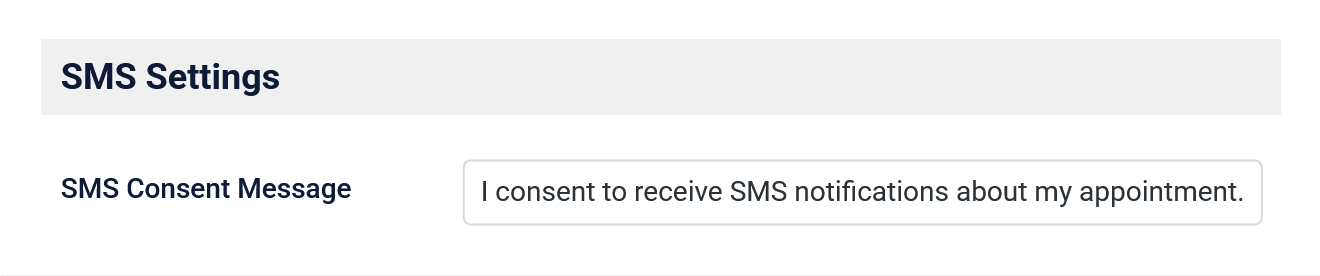
Edit the label for the SMS consent checkbox shown on your booking form. This controls how customers opt in to receive text notifications. See the SMS doc for full setup and customization options.
- Custom fields
Add custom fields to your booking form to collect additional information from customers before each appointment. See the custom fields doc for field types, setup, and display options.